malware

What is malware?
Malware, or malicious software, is any program or file that is intentionally harmful to a computer, network or server.
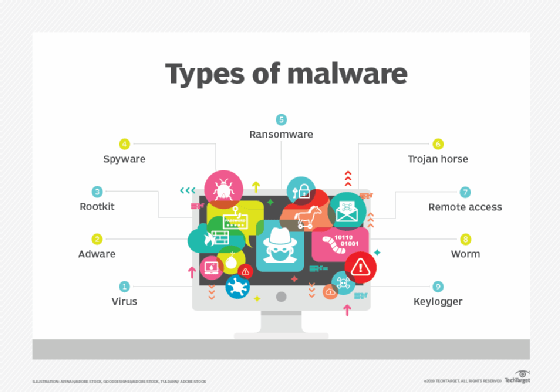
Types of malware include computer viruses, worms, Trojan horses, ransomware and spyware. These malicious programs steal, encrypt and delete sensitive data; alter or hijack core computing functions and monitor end users' computer activity.
What does malware do?
Malware can infect networks and devices and is designed to harm those devices, networks and/or their users in some way.
Depending on the type of malware and its goal, this harm may present itself differently to the user or endpoint. In some cases, the effect malware has is relatively mild and benign, and in others, it can be disastrous.
No matter the method, all types of malware are designed to exploit devices at the expense of the user and to the benefit of the hacker -- the person who has designed and/or deployed the malware.
How do malware infections happen?
Malware authors use a variety of physical and virtual means to spread malware that infects devices and networks. For example, malicious programs can be delivered to a system with a USB drive, through popular collaboration tools and by drive-by downloads, which automatically download malicious programs to systems without the user's approval or knowledge.
This article is part of
What is data security? The ultimate guide
Phishing attacks are another common type of malware delivery where emails disguised as legitimate messages contain malicious links or attachments that deliver the malware executable file to unsuspecting users. Sophisticated malware attacks often feature the use of a command-and-control server that enables threat actors to communicate with the infected systems, exfiltrate sensitive data and even remotely control the compromised device or server.
Emerging strains of malware include new evasion and obfuscation techniques designed to not only fool users, but also security administrators and antimalware products. Some of these evasion techniques rely on simple tactics, such as using web proxies to hide malicious traffic or source IP addresses. More sophisticated threats include polymorphic malware that can repeatedly change its underlying code to avoid detection from signature-based detection tools; anti-sandbox techniques that enable malware to detect when it is being analyzed and to delay execution until after it leaves the sandbox; and fileless malware that resides only in the system's RAM to avoid being discovered.
What are the different types of malware?
Different types of malware have unique traits and characteristics. Types of malware include the following:
- A virus is the most common type of malware that can execute itself and spread by infecting other programs or files.
- A worm can self-replicate without a host program and typically spreads without any interaction from the malware authors.
- A Trojan horse is designed to appear as a legitimate software program to gain access to a system. Once activated following installation, Trojans can execute their malicious functions.
- Spyware collects information and data on the device and user, as well as observes the user's activity without their knowledge.
- Ransomware infects a user's system and encrypts its data. Cybercriminals then demand a ransom payment from the victim in exchange for decrypting the system's data.
- A rootkit obtains administrator-level access to the victim's system. Once installed, the program gives threat actors root or privileged access to the system.
- A backdoor virus or remote access Trojan (RAT) secretly creates a backdoor into an infected computer system that enables threat actors to remotely access it without alerting the user or the system's security programs.
- Adware tracks a user's browser and download history with the intent to display pop-up or banner advertisements that lure the user into making a purchase. For example, an advertiser might use cookies to track the webpages a user visits to better target advertising.
- Keyloggers, also called system monitors, track nearly everything a user does on their computer. This includes emails, opened webpages, programs and keystrokes.
How to detect malware
Users may be able to detect malware if they observe unusual activity such as a sudden loss of disk space, unusually slow speeds, repeated crashes or freezes, or an increase in unwanted internet activity and pop-up advertisements.
Antivirus and antimalware software may be installed on a device to detect and remove malware. These tools can provide real-time protection or detect and remove malware by executing routine system scans.
Windows Defender, for example, is Microsoft antimalware software included in the Windows 10 operating system (OS) under the Windows Defender Security Center. Windows Defender protects against threats such as spyware, adware and viruses. Users can set automatic "Quick" and "Full" scans, as well as set low, medium, high and severe priority alerts.
How to remove malware
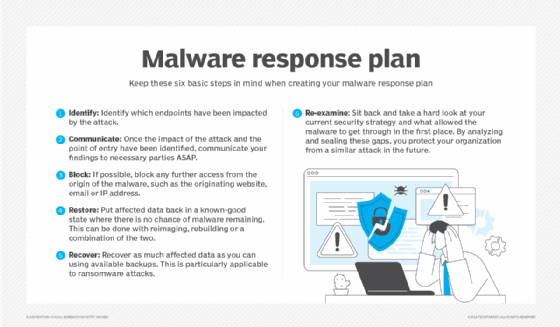
As mentioned, many security software products are designed to detect and prevent malware, as well as remove it from infected systems.
Malwarebytes is an example of an antimalware tool that handles detection and removal of malware. It can remove malware from Windows, macOS, Android and iOS platforms. Malwarebytes can scan a user's registry files, running programs, hard drives and individual files. If detected, malware can then be quarantined and deleted. However, unlike some other tools, users cannot set automatic scanning schedules.
How to prevent malware infections
There are several ways users can prevent malware. In the case of protecting a personal computer, users can install antimalware software.
Users can prevent malware by practicing safe behavior on their computers or other personal devices. This includes not opening attachments from strange email addresses that may contain malware disguised as a legitimate attachment -- such emails may even claim to be from legitimate companies but have unofficial email domains.
Users should update their antimalware software regularly, as hackers continually adapt and develop new techniques to breach security software. Security software vendors respond by releasing updates that patch those vulnerabilities. If users neglect to update their software, they may miss out on a patch that leaves them vulnerable to a preventable exploit.
In enterprise settings, networks are larger than home networks, and there is more at stake financially. There are proactive steps companies should take to enforce malware protection. Outward-facing precautions include the following:
- Implementing dual approval for business-to-business (B2B) transactions; and
- Implementing second-channel verification for business-to-consumer (B2C) transactions.
Business-facing, internal precautions include the following:
- Implementing offline malware and threat detection to catch malicious software before it spreads;
- Implementing allowlist security policies whenever possible; and
- Implementing strong web browser-level security.
Does malware affect Macs?
Malware can affect Macs as well as Windows. Historically, Windows devices are considered to be a larger target for malware than Macs, in part because users can download applications for macOS through the App Store.
The company Malwarebytes reported in 2020 that for the first time ever, malware on Macs is outpacing malware on PCs. This is in part due to the popularity of Apple devices, drawing more attention from hackers.
Does malware affect mobile devices?
Malware can be found on mobile phones and can provide access to a device's components such as the camera, microphone, GPS or accelerometer. Malware can be contracted on a mobile device if a user downloads an unofficial application or clicks on a malicious link from an email or text message. A mobile device can also be infected through a Bluetooth or Wi-Fi connection.
Mobile malware more commonly found on devices that run the Android OS than iOS. Malware on Android devices is usually downloaded through applications. Signs that an Android device is infected with malware include unusual increases in data usage, a quickly dissipating battery charge, or calls, texts and emails being sent to the device contacts without the user's initial knowledge. Similarly, if a user receives a message from a recognized contact that seems suspicious, it may be from a type of mobile malware that spreads between devices.
Apple iOS devices are rarely infected with malware because Apple vets the applications sold in the App Store. However, it is still possible for an iOS device to be infected with malicious code by opening an unknown link found in an email or text message. iOS devices will also become more vulnerable if jailbroken.
History of malware
The term malware was first used by computer scientist and security researcher Yisrael Radai in 1990. However, malware existed long before this.
One of the first known examples of malware was the Creeper virus in 1971, which was created as an experiment by BBN Technologies engineer Robert Thomas. Creeper was designed to infect mainframes on ARPANET. While the program did not alter functions or steal or delete data, it moved from one mainframe to another without permission while displaying a teletype message that read, "I'm the creeper: Catch me if you can." Creeper was later altered by computer scientist Ray Tomlinson, who added the ability to self-replicate to the virus and created the first known computer worm.
The concept of malware took root in the technology industry, and examples of viruses and worms began to appear on Apple and IBM PCs in the early 1980s before becoming popularized following the introduction of the World Wide Web and the commercial internet in the 1990s. Since then, malware -- and the security strategies to prevent it -- have only grown more complex.
Similar programs to malware
There are other types of programs that share common traits with malware but are distinctly different. One example is a PUP, or potentially unwanted program. These are applications that trick users into installing them on their systems -- such as browser toolbars -- but do not execute any malicious functions once they have been installed. However, there are cases where a PUP may contain spyware-like functionality or other hidden malicious features, in which case the PUP would be classified as malware.